


SketchPad – Doodle & Draw
4.5589.00 Reviews
App Specs
- Version
- 3.0.2
- Updated On
- License
- Free
- Downloads
- 1,000,000+
- Developer
- Kaffeine Software
- Categories
- Art & Design
- Platform
- Android, iOS
Screenshots
 Analysis by AppCompare
If you’ve ever found yourself doodling on the margins of your notebooks, or if you’re someone who loves to express creativity through drawing, then you might want to check out SketchPad – Doodle & Draw. Available on both Android and iOS, this app promises to be a playground for your imagination. Let me walk you through my experience with this nifty little app.
What Makes the First Week Appealing
The immediate appeal is easy to understand: opening a blank canvas is a low-pressure invitation to make something, even if all I have is a few spare minutes. Scribbling a rough idea, testing a color combination, or turning a passing thought into a small drawing gives the app a clear everyday role. I would use it for quick visual notes and casual doodles before reaching for a more involved art setup.
A realistic use is sketching an idea while waiting for a friend: I can block out the rough shape, try a couple of colors, and save the result rather than trust myself to remember it later. The important advantage is not that every sketch becomes finished art; it is that starting feels less consequential than using paper or opening a large, complicated program. That makes experimentation inviting during the first few days.
SketchPad is a free art and design app from Kaffeine Software. It is rated for Everyone, and its current version is 3.0.2. Those details make it approachable for casual use, including a family member who simply wants to draw for fun, while the optional in-app purchases, ranging from $0.99 to $2.99 per item, are worth keeping in mind if you prefer to avoid spending inside free apps.
Getting Started with SketchPad
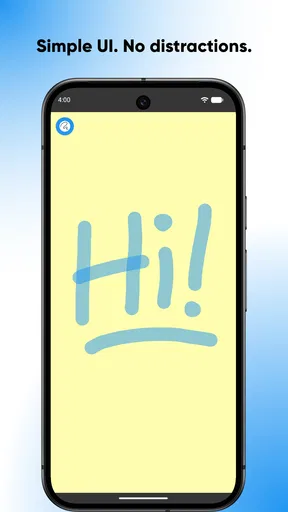
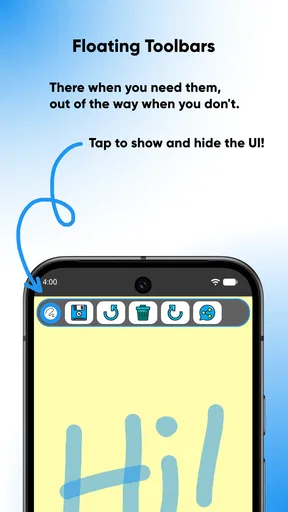
First off, downloading and setting up SketchPad – Doodle & Draw is a breeze. It’s super lightweight, so it won't hog your phone’s memory, which is always a plus. Once you’ve got it installed, you’re greeted with a simple and intuitive interface. The design is minimalistic, making it easy to navigate even for those who aren’t tech-savvy. It’s kind of like having a blank canvas and a bunch of art supplies at your disposal, without the real-world mess.
That uncomplicated start is particularly useful when I want to draw rather than spend time learning a dense interface. I would still treat it as a sketching space first: a straightforward canvas suits quick plans, little illustrations, and rough studies, but it is not automatically a replacement for a specialist digital-art workspace. If your first goal is to get a thought onto the screen, the simple approach is a strength; if you need a carefully managed production workflow, simplicity can become a limit.
Features That Stand Out
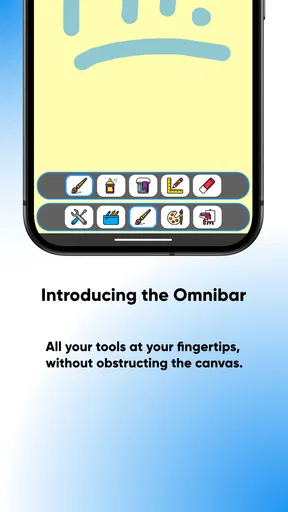
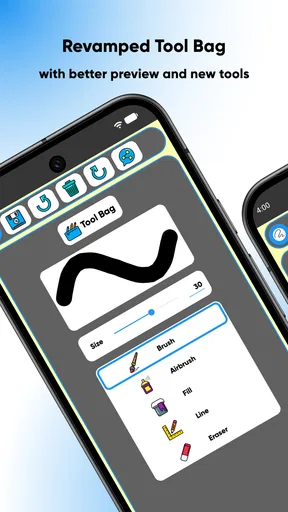
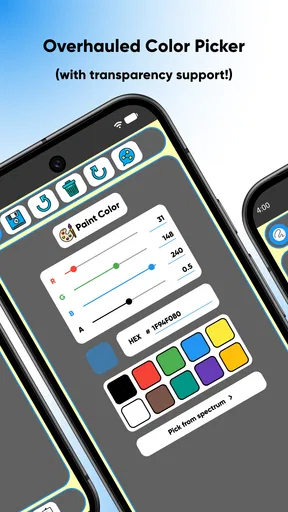
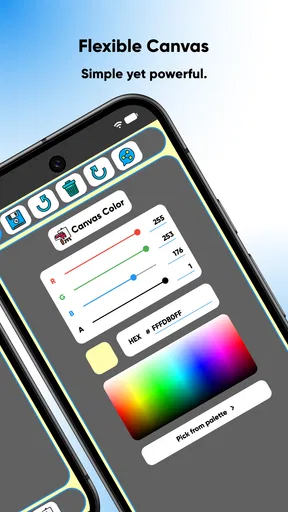
One of the coolest things about SketchPad is its variety of tools. You get a full spectrum of brushes, pens, and pencils, each customizable in terms of size and opacity. Whether you’re into fine line drawings or bold strokes, there’s something here for everyone. There’s also a color wheel that seems endless, allowing you to mix and match to your heart’s content. It’s like having a professional art studio in your pocket.
Worth Reading Before You Choose

EA SPORTS FC Mobile 26 Is a Bigger Football Game, but It Takes Time

Flipboard Shows What News Apps Must Do Beyond the Feed

Switching to Android Auto Means Rethinking Your Driving Routine

Google Calendar Makes a Crowded Week Easier to Manage

Ludo King Makes the Most of the Minutes Between Plans

Baby Panda World Brings Quick Play to Modern Phones, but Its Game Library Feels Busy
A practical way to make those choices less overwhelming is to settle on a small set of brush sizes and a limited palette before starting a drawing. I find that this keeps a casual session moving: one tool for outlines, another for broad areas, and a few chosen colors are often enough for a clear doodle. The trade-off is that a wide selection can tempt me to keep sampling tools instead of finishing the idea, so a little self-imposed limit helps.
Now, let’s talk about layers. If you’re familiar with digital art, you know how crucial layers can be. SketchPad offers multiple layers, which is a game changer for creating complex artworks. You can adjust each layer’s opacity, merge them, or delete them as needed. This feature alone makes it a solid choice for serious artists looking to create intricate designs.
For a more deliberate workflow, I would keep a rough construction separate from the cleaner lines rather than trying to perfect everything in one pass. Lowering a layer’s opacity can help the next pass read more clearly, while keeping parts apart makes it easier to revise one element without disturbing another. There is a balance, though: merging layers may simplify a finished piece, but it also removes some flexibility, so I would wait until I am happy with the separate elements before doing it.
User Experience
Using SketchPad is as smooth as butter. The app responds quickly to touch, and there’s virtually no lag, which is crucial when you’re in the flow of creating something beautiful. It’s also worth mentioning that the app works both in portrait and landscape modes, so you can choose whatever suits your creative style best.
On a phone, the choice between portrait and landscape is more than a preference. Portrait can feel natural for a quick note or a narrow character sketch, while landscape gives my hand more horizontal room for a wider composition. I would switch orientation before beginning a piece rather than halfway through, especially if I am trying to keep the framing consistent. A compact screen still asks for careful finger placement, so anyone who regularly draws tiny details may find a larger display or a stylus-based setup more comfortable.
If you’re like me and enjoy sharing your creations, SketchPad makes it easy to export your doodles and drawings. You can share directly to social media platforms or save them to your gallery in various formats. It’s a seamless process, which is great for those spontaneous moments when you want to show off your latest masterpiece.
For anything I might want to revisit, I would save a copy to the gallery before sharing it. That simple habit gives me a local version to keep, while sharing can remain a separate step for a finished or presentable result. It also helps make the app useful beyond the drawing session itself: a rough diagram can be kept as a reminder, and a more polished doodle can be sent to someone without turning every unfinished experiment into a public post.
Unleashing Creativity on the Go
One of the best things about having SketchPad on your phone is the ability to create art anytime, anywhere. Whether you’re on a long commute or just lounging at home, having this app handy means you’re never far from your next creative project. It’s perfect for quick sketches or developing more detailed works over time.
For a month-to-month routine, I would give the app a specific job instead of expecting it to become a full art studio. It can hold visual ideas that would otherwise disappear: a layout for rearranging a room, a quick character pose, or a small color study before choosing materials for a larger project. Returning to those saved sketches gives the habit a purpose, because each session can build on something rather than begin with a blank screen.
This is where it compares well with the usual alternatives. Paper is immediate and comfortable for many people, but a digital canvas avoids using physical supplies and makes undoing a stray mark easy. A notes app can be quicker for words and simple diagrams, yet it usually does not offer the same drawing-focused tools. At the other end, feature-heavy art programs can be better for elaborate, carefully managed work, but they may bring more interface and workflow than a casual doodler needs. SketchPad’s appeal is its middle ground, not a claim that it does every specialist job.
That middle ground also helps answer who should try it. I would recommend it to someone who wants an approachable place for sketches, playful drawing, or basic visual planning, and to an experienced artist who wants a convenient space for rough ideas. I would skip it as my main tool if my work depended on a highly specialized production process, exacting fine-detail control on a small phone screen, or a more elaborate set of professional workflows.
For a low-maintenance habit, I would keep one simple routine: open a saved sketch, make one useful change, and save the result before leaving. That is less demanding than setting aside a long drawing session, and it reduces the chance that the app becomes a novelty I forget after the first burst of enthusiasm. A small recurring purpose matters more than trying to make every session impressive.
There is also a practical distinction between trying the app and relying on it as an archive. Exporting a finished drawing to the gallery is a sensible way to keep a copy outside the drawing session. If a sketch is important, I would not leave its only copy somewhere I may not look again; I would save or share it deliberately. That cautious habit is useful for any creative app, especially when a casual doodle starts becoming a reference for a larger project.
The main source of fatigue is likely to be the gap between a playful sketching tool and the expectations people bring from advanced art software. Brushes and layers give room to experiment, but they do not make every complex project effortless. A phone is convenient for getting started, yet less comfortable when a drawing demands long, precise sessions. If I notice myself spending more time adjusting tools than drawing, I would simplify the task or move the project to a setup better suited to it.
The app has been available since January 21, 2018, and it has reached over one million installs, with an average rating of 4.4 from around 3,700 ratings and 542 written reviews. I read that level of adoption as a sign that it has found an audience, not as a promise that it will suit every style of artist. The version number and history are useful context, but my decision would still rest on whether its simple drawing experience fits the way I actually want to work.
For a free app, the optional purchases are another point to consider over time. I would begin with the free experience and decide whether any paid item solves a real need for my routine, rather than buying something just because it is offered. Since the individual items range from $0.99 to $2.99, it is sensible to check the purchase choice before confirming it, particularly if the app is being used by a child or shared on a family device.
People often want to know whether this kind of app is suitable for beginners, whether it can support more involved drawings, and whether it is worth keeping installed. My answer is that its approachable canvas and undo-and-redo controls make it friendly for trying ideas without worrying about wasting paper. Layers and adjustable tools give a drawing more structure, but I would judge its suitability for a demanding project by testing the specific workflow first. It earns space on my phone when I use it for quick sketches, visual notes, or a relaxed drawing habit; if I rarely open it or need specialist controls, another option is the better fit.
For those who might be hesitant about their artistic abilities, SketchPad is a welcoming space. It encourages experimentation without the fear of wasting materials or making irreversible mistakes. The undo and redo buttons are your best friends here, allowing you to try new techniques and ideas without hesitation.
The Final Verdict
In a world where apps are constantly competing for our attention, SketchPad – Doodle & Draw stands out as a refreshing and versatile tool for anyone looking to explore their artistic side. Whether you’re a seasoned artist or just someone who loves to doodle, this app provides a fun and functional platform for creativity.
Its lasting value depends on a modest promise: make it easy to draw when an idea appears, then let the drawing be simple if that is all the moment requires. I would keep it around if I found myself returning to those saved sketches or using its canvas as a relaxed creative break. I would not keep it out of obligation, and I would choose a more specialized alternative when precision or a complex workflow matters more than quick access.
So, if you’re ready to unleash your inner artist, why not give SketchPad a try? It’s a delightful escape into the world of digital art, and who knows, you might just discover a new passion or hobby along the way.
Pros
- Intuitive interface for easy navigation.
- Wide range of brushes and colors.
- Supports layers for detailed work.
- Offline mode available.
- Regular updates with new features.
Cons
- Limited export formats.
- Occasional lag on older devices.
- Ads can be intrusive at times.
- No collaborative drawing feature.
- Paid features in free version.
FAQs for SketchPad – Doodle & Draw
What features does SketchPad – Doodle & Draw offer?
SketchPad – Doodle & Draw provides a variety of features including a wide range of brushes, colors, and textures to enhance your drawing experience. It also offers layering options, enabling users to create complex artwork. The app supports both finger and stylus input, making it versatile for different drawing styles.
Is SketchPad – Doodle & Draw suitable for beginners?
Absolutely! SketchPad is designed to be user-friendly, catering to both beginners and experienced artists. It includes tutorials and tips to help newcomers get started, while offering advanced tools for those more comfortable with digital art. Its intuitive interface ensures a smooth learning curve.
Can I save and export my artwork in SketchPad?
Yes, SketchPad allows you to save your creations in various formats such as JPEG, PNG, and even PSD for further editing. You can also share your artwork directly to social media platforms or send it via email. The app offers cloud storage options to keep your work safe and accessible.
Does SketchPad – Doodle & Draw have any in-app purchases?
While SketchPad offers a free version with essential features, there are in-app purchases available. These include additional brush packs, advanced tools, and an ad-free experience. Users can opt for a premium subscription to unlock all features, enhancing their creative capabilities.
Is SketchPad – Doodle & Draw available on both Android and iOS?
Yes, SketchPad – Doodle & Draw is available for download on both Android and iOS platforms. It is optimized for a wide range of devices, ensuring a seamless experience across smartphones and tablets. The app regularly updates to incorporate new features and improvements.


